
Kick Off Your NATM Show Networking with the Mobile App
Get the most out of the app and have a more productive experience at the 2026 #NATMShow!
Get our official event app,
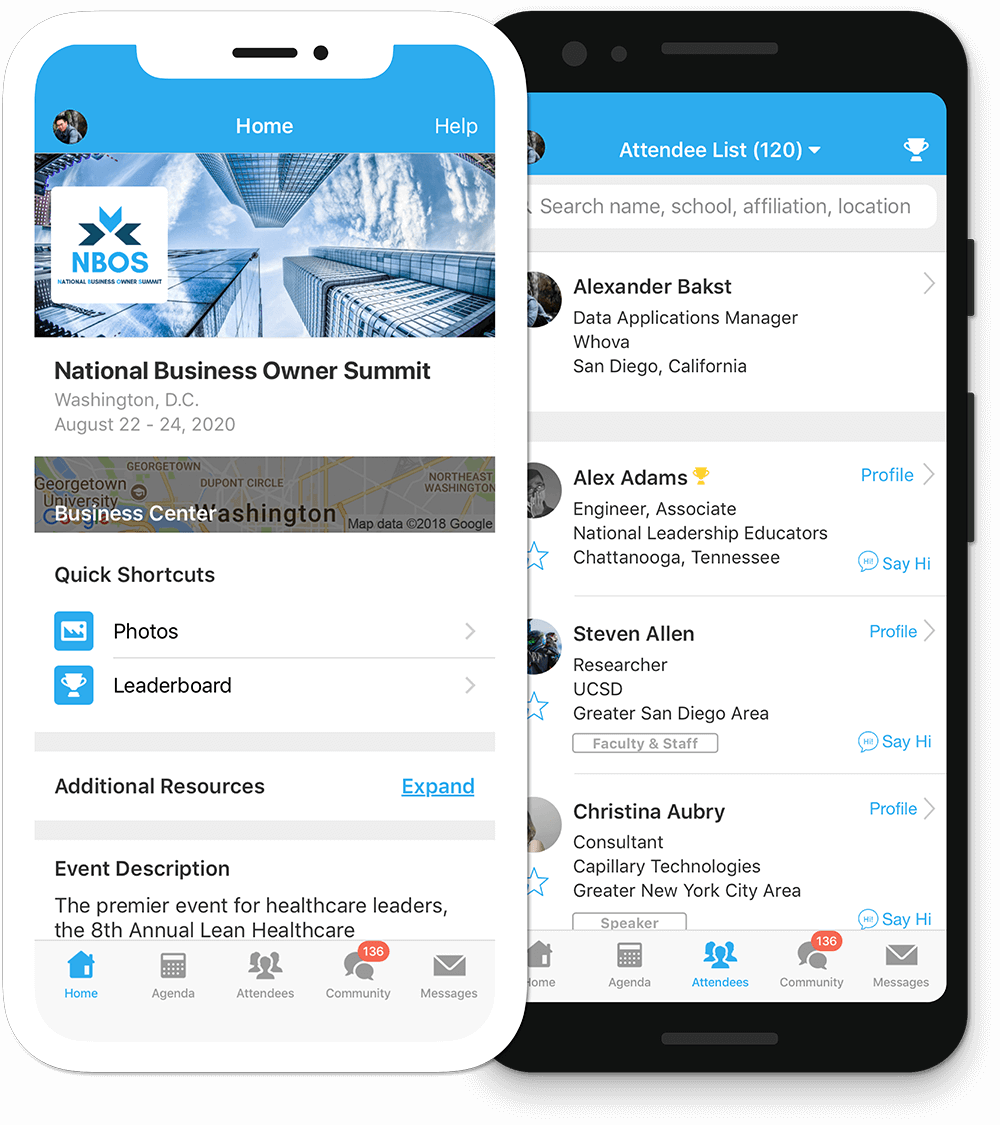
Get the most out of the app and have a more productive experience!
1
NAVIGATE the event agenda and logistics, even without Wi-Fi or data. Access useful information like ridesharing and local attractions through the Community Board
2
NETWORK effectively. Plan whom to meet by exploring attendee profiles and sending out messages
3
PARTICIPATE in event activities through session likes, comments, ratings, live polling, tweeting, and more
Sign in to the NATM Show Mobile App Hosted by Whova
1. Enter the email address you used for event registration or use your social media account.
To automatically log in to your event, please make sure to use the email you used when registering for the event. Not sure what e-mail to use? Contact Catie!
2. Create a password and type in your name
3. Edit your profile. Other attendees will use this to network with you - make sure you're making a good impression!
4. The app will take you to your event page automatically if the organizers have updated the app with your registration information
If your event doesn’t show up automatically, search for 'NATM Convention & Trade Show 2026'. Then, click the join button on the bottom of the event description page, and enter the event invitation code the organizers sent you. Please be aware: only registered attendees of the #NATMShow can create Whova logins.
View The Agenda And Plan Your Schedule
- Find the Agenda tab at the bottom of the screen. You should see a list of sessions for that day.
- You can move through different days by selecting the date you want to view on the calendar at the top of the agenda
- Browse or search for sessions on the top bar.
- Once you find the session you want to access, tap on it.
- If the session hasn’t occurred yet, you can click Add to My Agenda to put the session on your own personal agenda and set a reminder.
 |
 |
 |
See Who Is Attending the Event & Collect Contact Information
- Click the “Attendees” tab on the bottom of the screen to browse the attendee list.
- At the top of the page, you can search attendees by keywords such as company name or title. In their professional profiles, you can take notes or request contact information.
- To find people with common backgrounds and interests, click the Recommended tab on the top of the Attendees list to find Whova’s recommendations about people you may be interested in networking with. Click into each item to see attendees who come from the same city or have the same affiliations, educational background, or interests as you.
- Say Hi with one click or start a private chat by clicking the Message button. You can convert it to a private group chat by inviting more people.
 |
 |
 |
Join the Discussion On The Community Board
- Click the Community tab on the bottom of the screen.
- Create a new conversation topic, or tap the topic to join existing topics like “Exhibitor Promotional Offers.”
- Click Follow directly next to the topics on the Community Board that you want to stay up to date with. To find the topics you’re following, choose between three tabs near the top of the page: All Topics, Followed, and New Topics.
 |
 |
Learn More About the Upcoming #NATMShow
Developing Agenda Hotel Information Register Today
Get Social With NATM!
Facebook | Instagram | LinkedIn | YouTube